
Quick answer
If you want to distribute HDMI to multiple TVs, the right method depends on whether every screen should show the same source or choose independently. One source can be mirrored to several TVs using a suitable splitter or distribution system; existing coax can sometimes be reused with HDMI-to-DVB-T/RF modulation; and several sources feeding independently selectable screens usually calls for an HDMI matrix. Cat6 or AV-over-IP may be better where the screens are further from the source equipment.
"How do I connect several devices to several screens?" sounds like a cable question, but there are three different jobs that are regularly confused: switching several sources into one screen, duplicating one source onto several screens, and independently routing several sources to several screens.
Once you separate those jobs, the equipment choice becomes much easier. This guide covers laptops and PCs, CCTV recorders, games consoles, media players, Sky boxes and other HDMI sources rather than tying the answer to one type of device.
First: switch, splitter or matrix?
For the specific problem of multiple sources to multiple independently selectable screens, the matrix is the key device. A 4×4 matrix, for example, has four source inputs and four display outputs. You do not have to use every input or output just because the hardware provides it.
A simple three-source, three-screen example
Imagine an office has three computers and three monitors. On Monday, Computer 1 may need Screen 1, Computer 2 Screen 2 and Computer 3 Screen 3. On Tuesday, the users may want Computer 1 on Screen 3 while the other sources are reassigned elsewhere.
With a suitable matrix, those routes are changed at the central switch rather than by crawling behind desks and swapping HDMI leads. The same principle works if the sources are a CCTV NVR, a games console and a media player instead of three computers.
Can the same source appear on more than one screen?
A suitable matrix can normally route one input to more than one output as well as sending different inputs to different outputs. That means Source 1 could appear on Screens 1 and 2 while Source 3 appears on Screen 3.
This is different from an HDMI splitter because a splitter is fundamentally a one-source duplication device. A matrix gives you the routing flexibility to change those assignments rather than fixing every screen to the same input.
Important: a matrix does not create extra computer desktops
This catches people out. If one laptop has one HDMI output, a matrix can send that output to different screens or duplicate it, but it cannot turn that one video output into three independent extended desktops.
If one computer needs three genuinely separate desktop areas at the same time, the computer needs a suitable graphics output arrangement, dock or other display hardware capable of producing those independent outputs first. The matrix can then route the video signals that actually exist.
What if the keyboard and mouse need to follow the selected computer?
HDMI only deals with the video and audio path. If a user also needs one keyboard and mouse to control whichever computer is selected, the problem becomes a KVM requirement as well.
A KVM switch or KVM matrix can combine display switching with USB control depending on the layout. This is common in control rooms, shared workstations and technical environments where the user is changing not only what they can see, but which machine they are actively controlling.
What if the screens are a long way from the sources?
Direct HDMI is convenient over short local routes, but large properties and commercial sites often have the sources in one rack or room and screens much further away. At that point, the distribution medium becomes a separate design decision.
Suitable systems may extend HDMI over structured cabling, reuse appropriate existing coax with modulation, or move to an AV-over-IP architecture where the scale justifies it. Our HDMI over Cat6 versus coax guide explains two common building-wide transport methods without confusing them with the source-routing job itself.
How to distribute HDMI to multiple TVs over existing coax
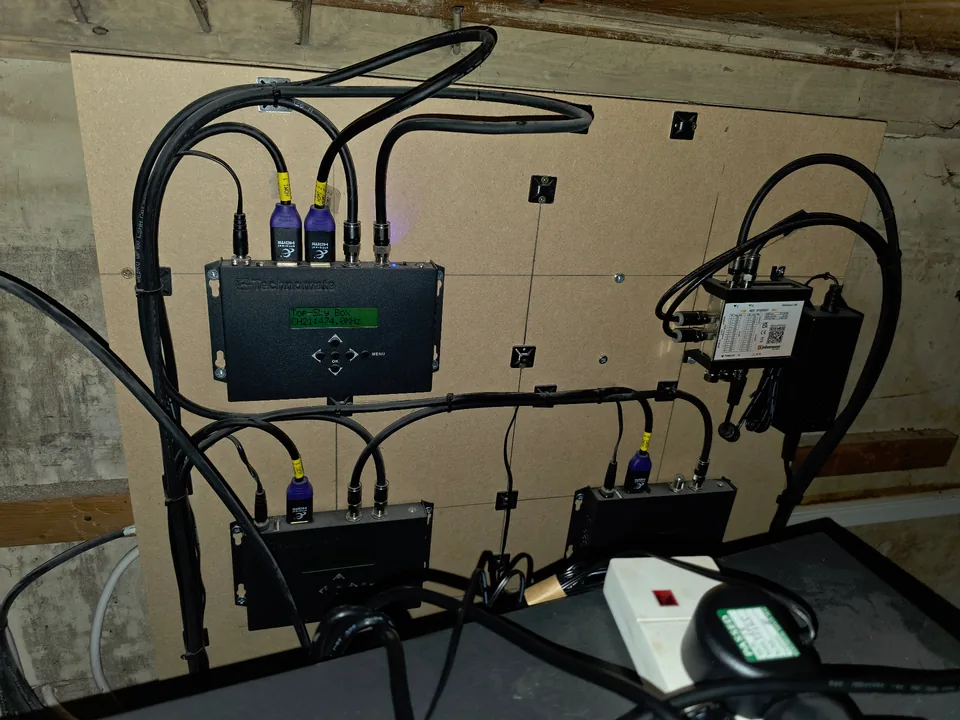
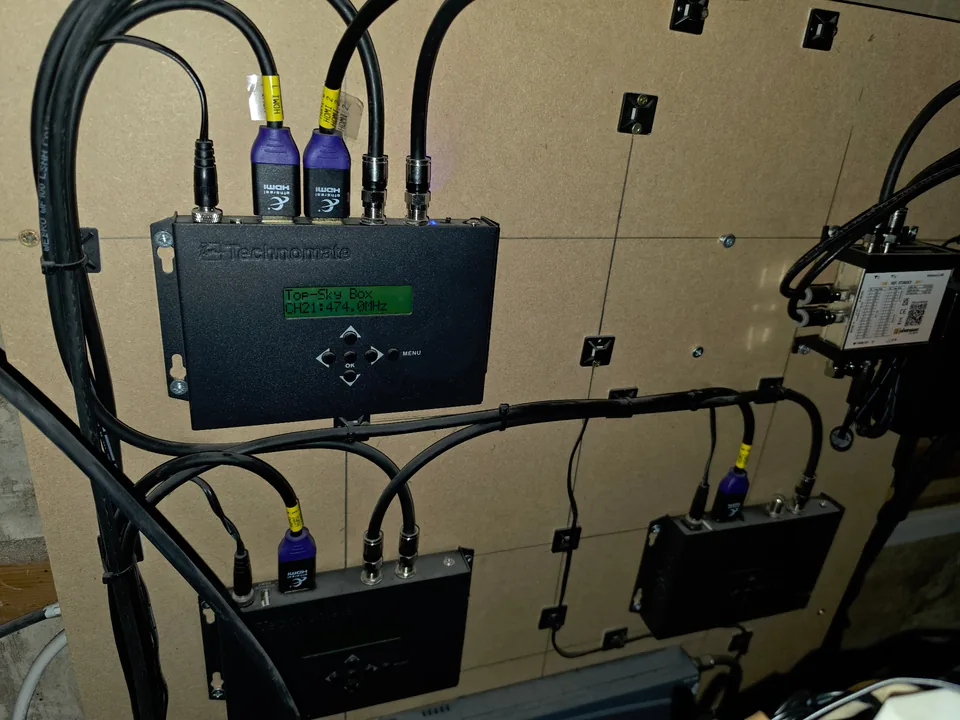
Sometimes, yes. Where a property already has a usable coax distribution network, an HDMI-to-DVB-T/RF modulator can take one HDMI source and turn it into a television channel that compatible TVs can tune through the existing coax system. That can be a very practical way to reuse cabling that is already routed to several rooms.
It is important to understand what this does and does not provide. A single modulated HDMI source is normally mirrored to the TVs receiving that channel; it does not give every room an independent HDMI session or create separate outputs from one source. Remote-control return, splitter/amplifier compatibility, coax condition and signal levels also need checking as part of the design.
We have used this type of approach on real multi-screen distribution work. For the Sky-specific version, see sending Sky Q to multiple TVs using existing coax. If you want the system designed and installed rather than just explained, use our HDMI distribution installation and multi-room video service and send the number of sources, screens and any existing Cat6 or coax routes.
Where CCTV fits into this
CCTV is a good example because a recorder may need to appear on a dedicated monitoring display most of the time but occasionally be shown somewhere else for review. A matrix can make the recorder one of several selectable sources if the video outputs and wider system support the required format.
That does not replace the recorder's network or remote-viewing features. It is simply another way of getting the local display output where it needs to go.
Where gaming and high-refresh displays need extra care
Not every matrix or extender supports every resolution, refresh rate, HDR mode or gaming feature. The whole signal path has to agree: source, matrix, extender if used, cable and display.
If a gaming PC or console needs a particular display mode, specify that before choosing the central hardware rather than discovering afterwards that the distribution device is the limiting part of the chain.
Why EDID and HDCP matter
HDMI devices exchange information about what formats the display can accept, and protected content can also depend on HDCP compatibility through the signal chain. With several different screens connected to one matrix, those negotiations become more important because the displays may not all support exactly the same modes.
Good matrix hardware provides ways to manage this, but there is no magic setting that makes incompatible devices identical. Mixed old and new screens are worth checking before the installation is specified.
Compatibility and content-rights checkpoint
Before the hardware is chosen, write down the exact resolution, refresh rate, HDR and audio formats each source and screen must support. Gaming, interactive control and live monitoring can also make end-to-end latency important. Those requirements have to be checked against the exact matrix, extender, receiver, cable route and display rather than a generic product category.
A point-to-point HDMI-over-Cat extender may use Cat6 cable, but that does not automatically make it standard Ethernet or mean it can pass through an ordinary network switch. AV-over-IP is a different architecture designed to carry encoded audio and video across compatible network equipment. The selected hardware and network design must explicitly support whichever method is proposed.
HDCP compatibility only confirms part of the protected signal path; it does not grant permission to show the content. The customer remains responsible for the subscriptions, licences and public or commercial viewing rights that apply to the intended content and audience.
How would you design a multi-source, multi-screen system?
- Count the sources. PCs, NVRs, consoles, receivers, media players and anything else that produces the video.
- Count the independently controlled screens. Two TVs always showing the same picture are a different requirement from two TVs that need separate choices.
- Write down the routing combinations. Does every source need access to every screen, or only certain pairs?
- Check the source outputs. Especially for computers that need extended rather than mirrored desktops.
- Confirm the required video formats. Resolution, refresh rate and protected content can affect the hardware choice.
- Measure the cable routes. Decide whether direct HDMI is sensible or whether Cat6, coax or an IP-based system is required.
- Decide how users will control it. Front buttons, remote control, control system or another interface depending on the installation.
- Add USB/KVM control only if it is actually needed.
Do you need an HDMI matrix for every multi-screen setup?
No. If you have four devices but only one TV, a switch is simpler. If one CCTV recorder needs to be copied to four displays, a splitter or distribution system may be the more direct answer. A matrix earns its keep when the important requirement is independent source selection across several screens.
Evolution Data & Digital designs HDMI distribution and multi-room video systems across Manchester, Stockport and Cheshire. If you send us the number of sources, number of screens and what you want each screen to be able to select, we can work backwards from the actual requirement rather than guessing which box you need.
Frequently asked questions
How do I connect multiple HDMI devices to multiple TVs or monitors?
If each screen needs to choose independently between several sources, an HDMI matrix is normally the starting point. A switch is for several sources to one screen, while a splitter duplicates one source to several screens.
Can an HDMI matrix show different devices on different screens?
Yes. That is the main purpose of a matrix: outputs can be assigned to different inputs, so one screen can show one source while another screen shows a different source.
Can one source be shown on several screens at the same time?
Suitable matrix systems can normally route one input to several outputs as well as sending different inputs to other screens. The connected devices still need compatible video formats.
Can I distribute HDMI to several TVs using existing coax?
Sometimes. A suitable HDMI-to-RF/DVB-T modulator can place one HDMI source onto a usable coax distribution network so compatible TVs can tune it. The source is normally mirrored, and the coax, splitters, signal levels and any remote-control requirement still need checking.
Can one laptop show three different desktops through an HDMI matrix?
Not from one video output alone. The computer must first provide the required independent display outputs through its graphics hardware or a suitable dock. A matrix routes existing signals; it does not create additional independent desktops.
What is the difference between an HDMI matrix and a KVM matrix?
An HDMI matrix routes video and audio. A KVM system also deals with keyboard, mouse or other USB control so a user can operate the selected computer as well as viewing it.
Can HDMI be distributed to screens in different rooms?
Yes, but long routes may need more than direct HDMI leads. HDMI over Cat6, suitable coax-based distribution or AV-over-IP can be considered depending on the building, distances and required video formats.
Clear written quotation before any chargeable work. Short-notice appointments may be available across Stockport, Greater Manchester and Cheshire.