
Quick answer
Faster broadband does not automatically mean better Wi-Fi around the house. The incoming internet connection and your local wireless network are separate parts of the system. If Wi-Fi became worse after switching provider, check what changed: router position, wireless settings, existing mesh equipment and the incoming service itself. Do that before buying more hardware.
The new broadband is connected, the test beside the router looks promising, yet the office struggles and the bedroom television buffers. A provider switch can change several parts of your home network at once. It can also expose a coverage problem that the old arrangement happened to accommodate, or coincide with a fault on the new service.
The useful starting point is a comparison of the old and new setup, followed by a few controlled checks. A disappointing wireless result does not, by itself, prove that the new provider or its router is the problem.
Faster broadband and better Wi-Fi are not the same thing
Your provider brings the internet connection to the property. The router connects that service to your local network, and Wi-Fi carries traffic between a wireless access point and your phone, laptop or television. The access point may be built into the router or provided by separate equipment.
The path is: incoming internet → router and local network → Wi-Fi → device. Engineers call the incoming side the WAN connection. A faster WAN connection cannot remove a weak radio link through a floor, a poorly connected mesh node or a limitation on one laptop. Each part of the path needs to work for the room you are using.
What actually changed when you switched provider?
Write down what was working before the switch and what is different now. Start with the rooms and devices affected, then work through this checklist:
- Router: was it replaced, moved or connected through a different socket or incoming service?
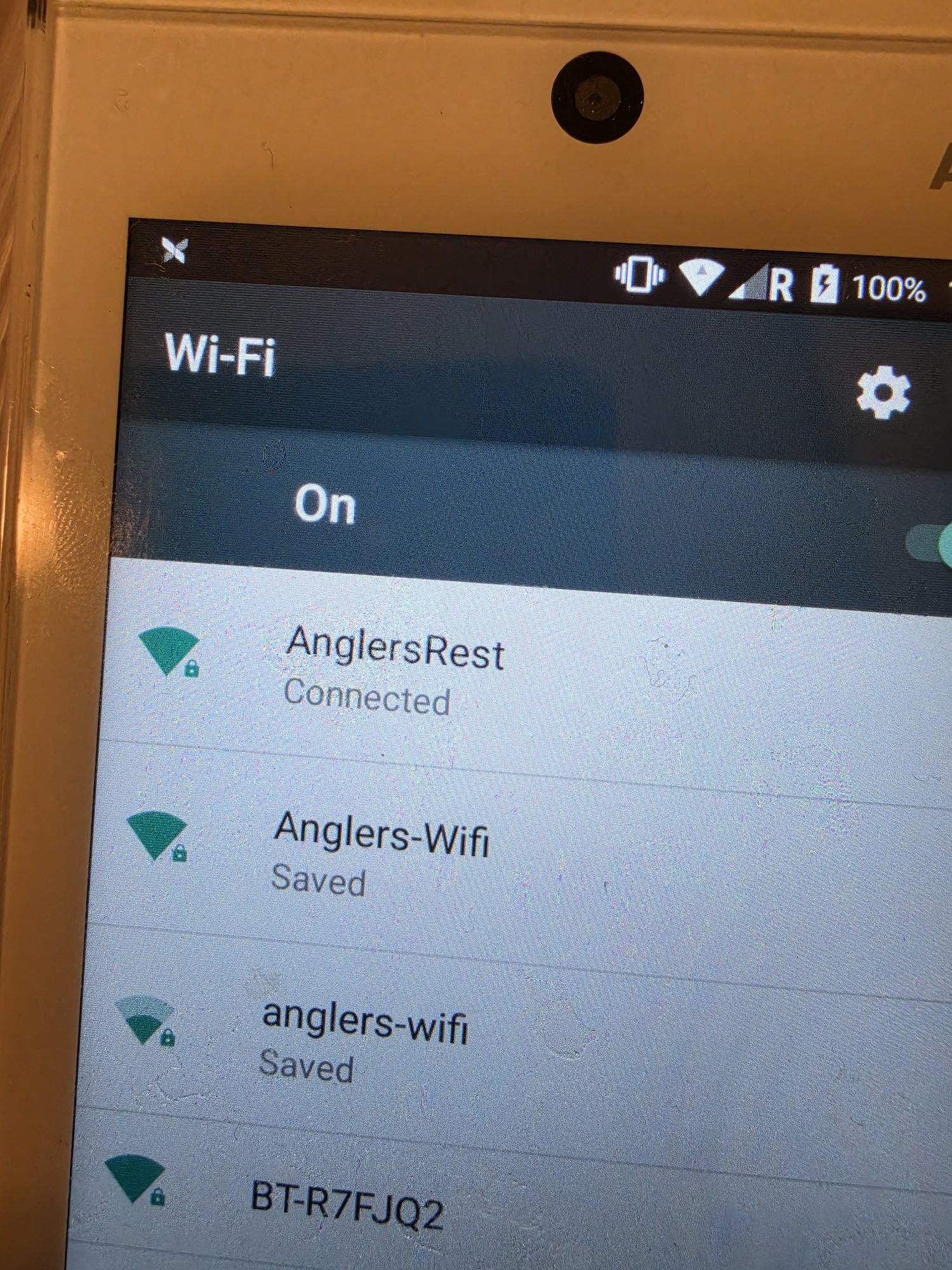
- Wi-Fi name and password: which devices joined the new network, and which still use an old saved one?
- Wireless settings: are bands, security settings or automatic channel choices different?
- Mesh and extenders: which units are still powered, connected and configured for the new arrangement?
- Ethernet cables: were the cables feeding a switch, mesh unit or access point reconnected to the intended ports?
- Network roles: is the new router now doing a job previously handled by the mesh system?
- Devices: did the problem start on everything, one device or only equipment in particular rooms?
- Incoming service: did the connection technology change, and does the provider report the new service as fully active?
Keep a note or photograph of the connections before making changes. Several changes may have happened together; testing one at a time makes it easier to identify what actually helps.
Did the new router move?
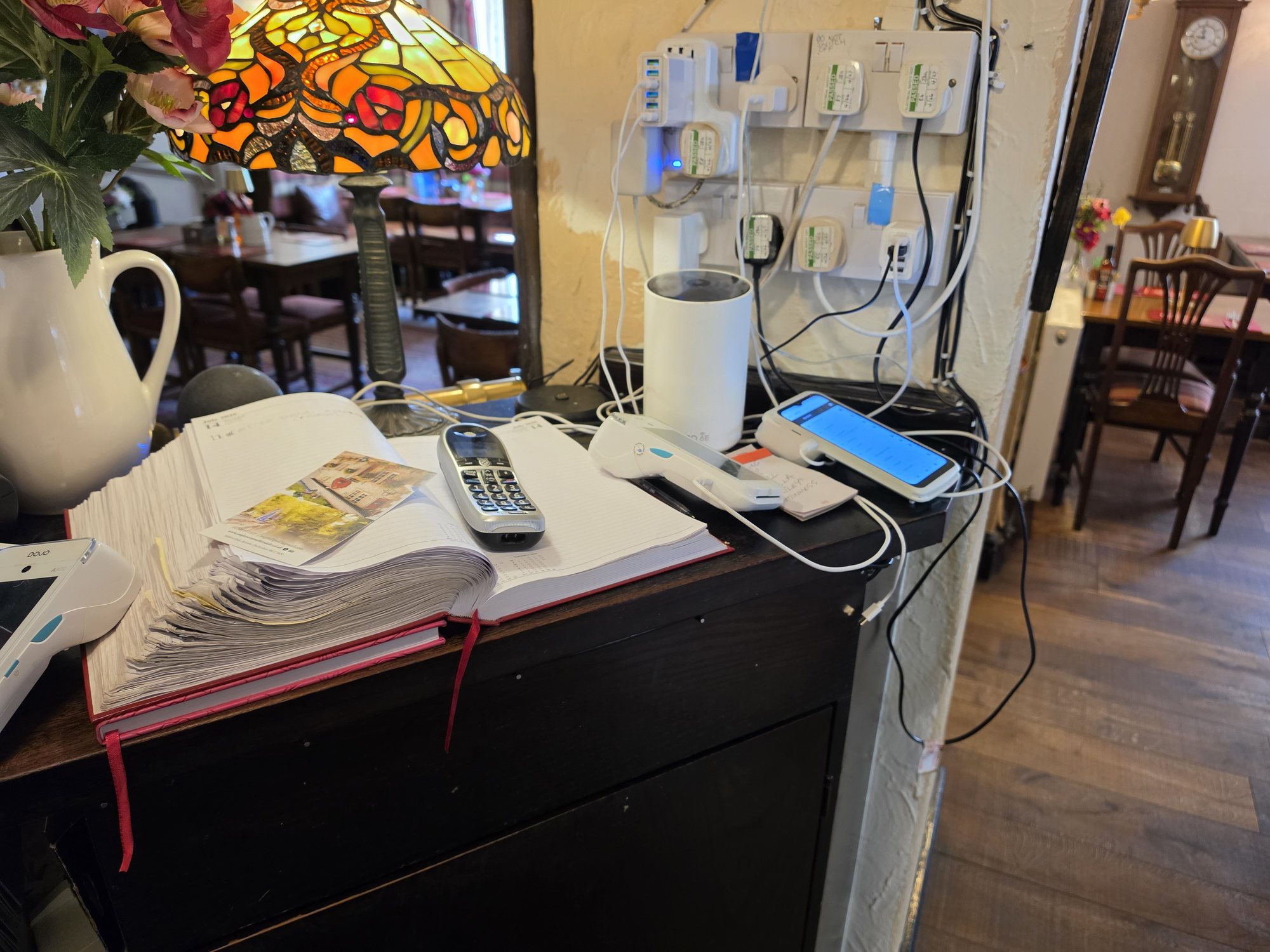
A router that used to sit on an open shelf may now be in a utility area beside a new fibre entry point. Moving it into a cupboard, a corner, a different floor or the other end of the house changes the wireless path to every room, even if the broadband entering it is faster.
Compare the old position with the new one. What walls, floors, metalwork or furniture now sit between the router and the problem room? The right position depends on the building, the incoming connection and where coverage is needed. There is no universal distance rule, and the centre of the floor plan is not automatically the best practical location.
Where the connections allow, test a clearer position before buying equipment. If the issue is now consistently tied to one room, our Wi-Fi dead-spots guide covers the wider coverage checks.
The new router may behave differently from the old one
Replacement routers can have different radios, antennas, supported features and default settings. They may choose different channels, combine wireless bands under one name, or encourage compatible devices towards a particular band. That last feature is often called band steering; it does not make every client behave identically.
Your laptop may therefore use a different wireless connection from before, even in the same chair. Compare the connected network, band and settings where your equipment shows them. Follow the current instructions for the exact router and device rather than copying settings from an unrelated model. No provider supplies the best or worst router for every property.
What happened to your existing mesh or Wi-Fi extenders?
A mesh system that worked with the old router may still be useful. Check how it reaches the new router and whether the original network layout has been preserved:
- Is the main mesh unit connected as its manufacturer requires?
- Does it need reconfiguration for the new connection or router?
- Are the router and mesh both routing traffic when a different supported setup was intended?
- Did moving the main unit leave a wireless satellite too far from its upstream connection?
- Is an old extender still broadcasting a network with an unusable upstream link?
- Was an Ethernet backhaul cable left unplugged, making a compatible node fall back to wireless?
Two routing devices can introduce double NAT, where traffic passes through two layers of address translation. That can affect some applications or access to local equipment; it does not itself prove poor Wi-Fi coverage. Check routing and radio coverage separately. Supported router, bridge and access-point modes vary, so confirm the provider and mesh instructions before changing modes or resetting equipment.
Our UniFi versus mesh guide explains the design choices if an upgrade is genuinely needed. If you have already added more nodes since the switch, read whether too many mesh units can make Wi-Fi worse before adding another.
Could your devices be connecting to the wrong Wi-Fi?
Check the network shown on the affected device, not just the name printed on the new router. An old saved network may still be broadcast by an extender. The provider router and a separate mesh system may both be active, or unrelated systems may share a name and make the actual connection hard to identify.
A shared name is normal within a correctly configured multi-access-point network. Giving separate systems identical names does not automatically coordinate them. Where the management app allows it, check which node or access point the device has joined.
Phones and laptops make their own roaming decisions, with assistance from supported network features. A device can remain attached to a more distant radio. Rejoining the intended network is a useful comparison, but repeatedly toggling Wi-Fi is not a lasting repair. Remove obsolete saved networks only once you know which connection should be retained.
Why the speed test beside the router can look brilliant
A nearby wireless test has a relatively favourable radio path. Moving the same device upstairs adds walls, floors and possibly a mesh backhaul link. A good result downstairs and a poor one in the office point towards investigating that changed local path; they do not mean the provider is sending a different broadband speed to each room.
Keep the test device and test method the same when comparing locations. Record whether the issue is slow loading, interrupted calls, lost Wi-Fi or loss of internet while Wi-Fi remains connected. For recurring disconnections beyond the provider-change checks, use our separate Wi-Fi keeps disconnecting guide.
How to tell whether the problem is broadband or Wi-Fi
Start with the incoming connection, then compare wireless performance. Where practical, connect a suitable computer directly to a LAN port on the router using a known-good Ethernet cable, with its Wi-Fi turned off for that test. A cable plugged into a wireless mesh satellite still includes the satellite's backhaul and is not the same control test.
Use the provider's recommended test method, pause large downloads where practical and repeat at comparable times. Check that the computer, adapter, cable and router port can support the service being assessed. Compare with the provider's expected service figures, allowing for the test setup; one consumer speed test cannot certify a connection or rule out intermittent faults.
When repositioning or configuration may be enough
If the switch disturbed a working setup, restoring the intended connections may solve the problem. That could mean reconnecting a backhaul cable, correcting the mesh layout, moving the router to a more useful position or resolving an unintended duplicate wireless network.
An unnecessary extender may be removable after testing confirms it adds no useful coverage. Configuration may need adjusting for the existing devices. Change one thing, repeat the same checks in the affected rooms, and keep equipment that still meets the requirement.
When a wired access point or Ethernet backhaul becomes useful
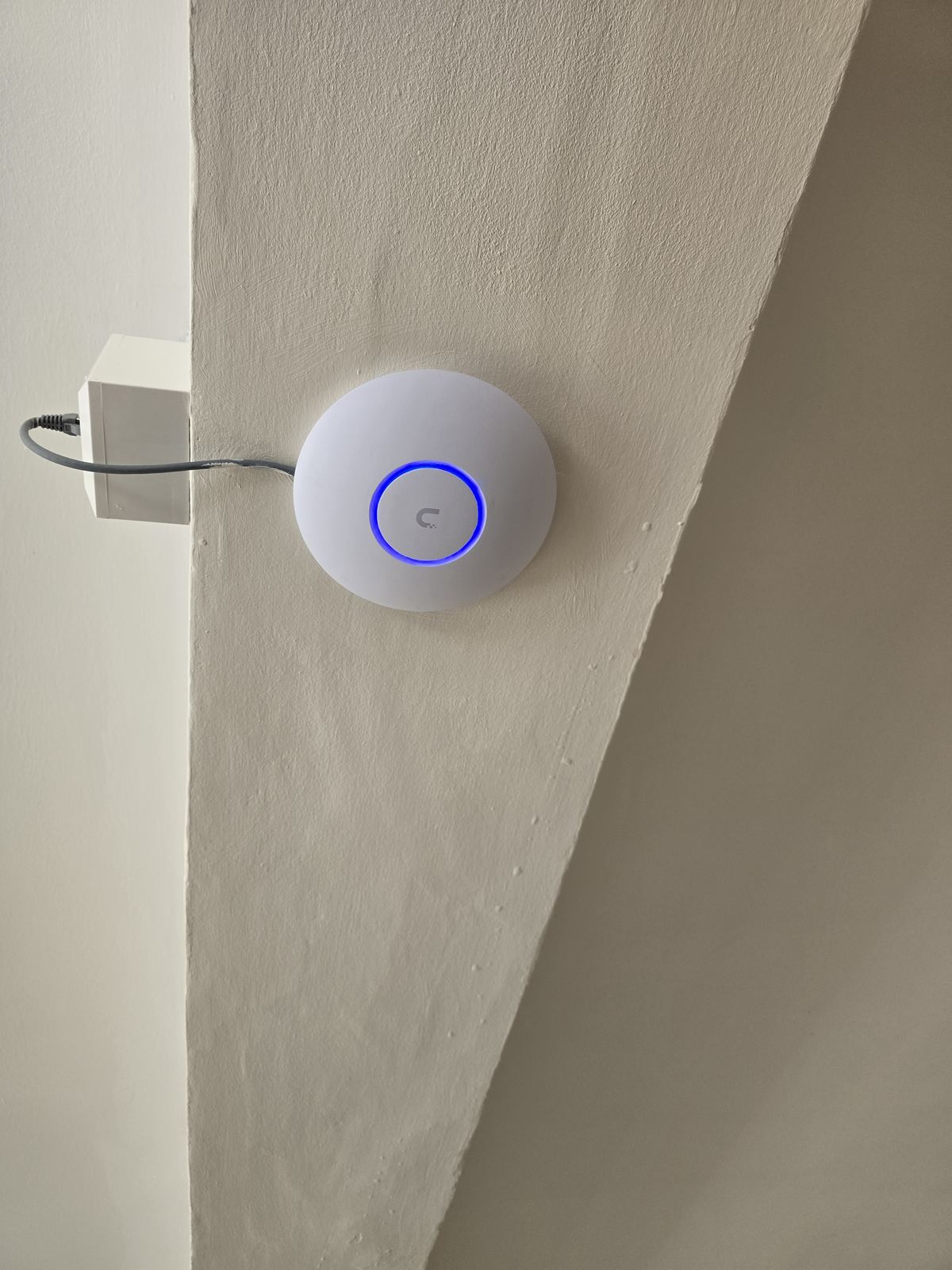
If coverage remains difficult and a cable route is practical, Ethernet can carry the local network to a better access-point position. The path becomes router or switch → Ethernet → access point → nearby wireless devices. The access point generates Wi-Fi where it is needed instead of depending on a weak wireless link back through the house.
Compatible mesh equipment may also support Ethernet backhaul, so cabling need not mean replacing the mesh. Neither approach fixes an incoming broadband fault, and the final result still depends on placement, configuration, the wired path and client devices.
Our data cabling and Ethernet installation service covers practical wired routes. For the wireless design around them, see Wi-Fi and home network installation.
When to contact the broadband provider instead
Contact the provider when appropriate repeated wired tests are poor, the router repeatedly loses its incoming connection, service or line indicators show a fault, or there may be an activation, provisioning or account issue after the switch. Record the times, router status and test setup so the provider has something useful to investigate.
A broadband fault and a local coverage issue can coexist. Establish what the incoming service is doing before treating extra Wi-Fi equipment as the answer. If Ethernet-connected devices lose internet too, changing wireless channels alone will not explain the shared failure.
How Evolution diagnoses this without replacing everything
- Establish what the incoming connection is doing with suitable baseline checks.
- Compare the old and new layout, including the router position and network roles.
- Identify the affected rooms and devices and reproduce the reported problem.
- Inspect existing mesh, access points and cabling, including the backhaul connections.
- Test rather than guess, then check the effect of a controlled change.
- Retain useful existing equipment where it supports the required setup.
- Recommend the simplest proportionate fix and explain what it addresses.
We would rather fix the part that is actually causing the problem than sell a new network simply because the broadband provider changed. Evolution Data & Digital is based in Stockport and serves Greater Manchester; our Stockport Internet & Wi-Fi service overview explains the local support routes.
Frequently asked questions
Why is my Wi-Fi worse with faster broadband?
The new package may improve the incoming internet connection while a moved router, different settings or changed mesh connection makes the local wireless path worse. Compare the setup before and after the switch, then test the incoming service and Wi-Fi separately.
Can changing broadband provider affect Wi-Fi coverage?
Yes, if the switch changes the router, its position, settings or the equipment providing wireless coverage. A provider change that preserves a working local network need not cause coverage problems.
Do I need a new mesh system after changing provider?
Not automatically. Check that the existing mesh is connected and configured appropriately for the new router and that its nodes have healthy backhaul links. Reconfiguration or reconnecting a cable may be enough.
Can I keep my existing mesh with a new broadband router?
Often, provided the exact mesh and router support the intended setup. Check their instructions for connection requirements and operating modes. Decide which device handles routing and check the Wi-Fi networks being broadcast before changing settings.
How do I know whether the problem is my broadband or Wi-Fi?
Compare an appropriate wired test directly at the router with wireless tests beside it and in the affected room. Repeat using a second device where possible and check the provider's service status. These checks narrow the fault; a single speed result does not prove its cause.
Will an Ethernet cable or wired access point improve Wi-Fi upstairs?
It can help if a weak wireless path or mesh backhaul is the restriction and a practical cable route exists. A suitable access point can provide Wi-Fi locally upstairs. It will not repair an incoming broadband fault, and placement, configuration and the devices still matter.
Further technical guidance
For equipment-specific checks, see TP-Link's guidance on using Deco with an existing router, Apple's explanation of client roaming and BT's wired speed-test guidance. These describe particular products or test methods. Use the instructions for your own equipment and provider before changing configuration.
Clear written quotation before any chargeable work. Short-notice appointments may be available across Stockport, Greater Manchester and Cheshire.